Task:
Add a VM template image to CloudStack from the CloudStack web site.
When adding Zone, we can select templates to be automatically added. However, for the the first default zone, there is only the old CentOS 5 template and the System OS template added automatically. The rest have to be added manually. We can also create our own templates.
CloudStack UI --> Images (left twistie category) --> Templates (left menu) --> Register Template from URL + (button)
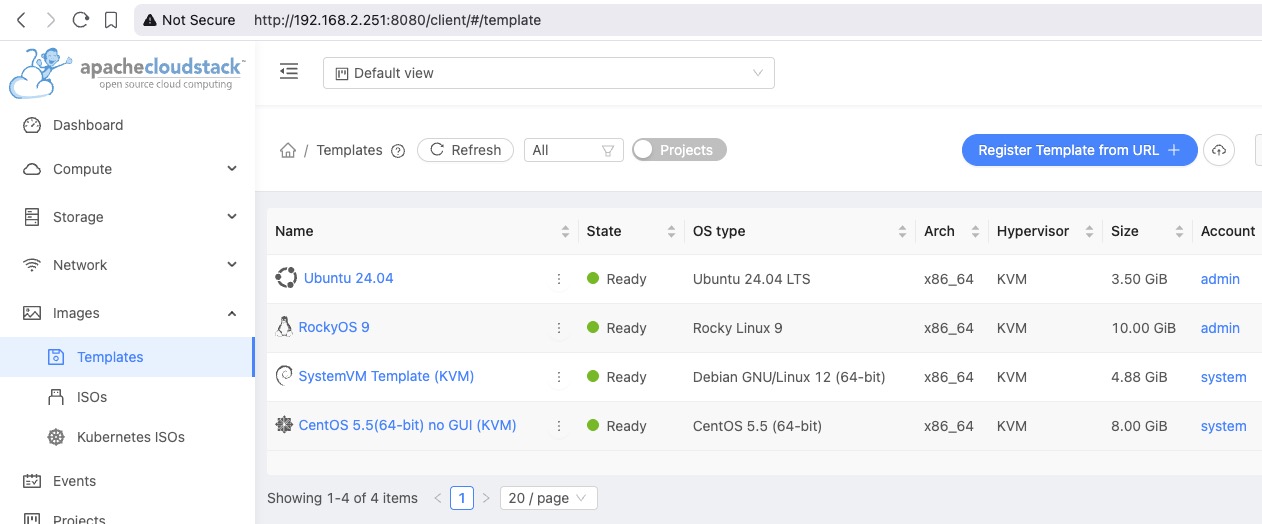
Register Template from URL:
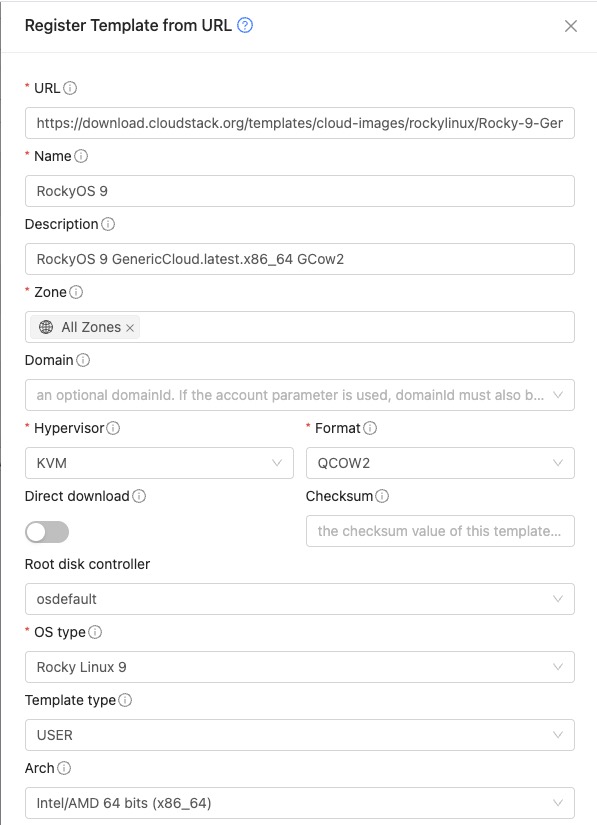
Complete the required fields. For this example, we'll complete with RockyOS 9.
The prebuilt templates are here:
download.cloudstack.org/templates/cloud-images/
Locate the template file, Rocky-9-GenericCloud.latest.x86_64.qcow2, right-click and choose the copy link option. We'll paste in the URL below.
- URL:
https://download.cloudstack.org/templates/cloud-images/rockylinux/Rocky-9-GenericCloud.latest.x86_64.qcow2
Other field notes:
- Zone, choose All Zones or the desired zone.
- Format is QCOW2 typically
- Template type is USER
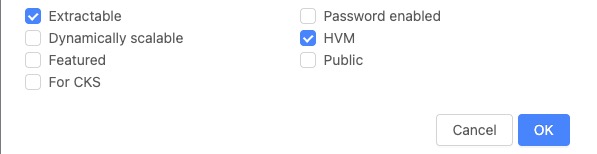
- Extractable, check to allow download (very useful to reuse to make a custom template based on this one)
Gotcha or Why-can't-I Notes:
- Login IDs:
RockyOS: rocky
Ubuntu: ubuntu
CentOS: cloud-user
Debian: debian
Fedora: fedora
OpenSUSE: opensuse
RHEL: cloud-user
- Ubuntu:
If you are adding an Ubuntu template, do NOT add the .img file and say it's a .qcow2. It has to be converted first.
a. Download from the web site to a local drive.
e.g. cloud-images.ubuntu.com/noble/current/
...
noble-server-cloudimg-amd64.img 2025-12-13 13:20 598M QCow2 UEFI/GPT Bootable disk image
...
noble-server-cloudimg-amd64.img
Note:
The file extension is .img, but the description says QCow2 UEFI/GPT image. The docs.openstack.org/image-guide/obtain-images.html indicates that the .img is a .qcow2 formatted file.
b. Convert the file with:
$ qemu-img create -F qcow2 -b noble-server-cloudimg-amd64.img -f ubuntu-24.04-server-cloudimg-amd64.qcow2 10G
<wait>
- How to Delete a Template:
The way to delete a template from just the secondary storage is a bit of a side trip.
CloudStack UI --> Images (left twistie category) --> Templates (left menu) --> <click template to open> (view entry) --> Zones (tab) --> Click the red trash can icon --> in the Delete Template pop-up dialog, Force delete toggle enable --> click OK.
previous page
|