By default, email is set to Plain text for new email composed. Font styling can only be added to email content when emails are in HTML/MIME type emails. Font styling includes bolding, italics, underlining, text justification, bulleted and number lists, adding embedded images, and changing the fonts themselves.
Almost all mail programs allow viewing, composing, and replying to MIME (HTML) formatted emails that include styling. So making this change should be safe for the vast majority of your recipients.
Part A.
Compose an email with MIME/HTML Styling:
To switch from "Plain text" to "HTML"
1.Click the Compose new email button.

2. Change the editor type for Plain text to HTML.
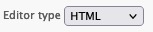
Notes:
- If the Editor Type field does not display for you, then the mail client is likely set to Plain Text mode only. To fix, skip to Part B below, and change the composing settings for HTML composing/styling. Then you will be able to toggle the selection.
- If you see a picture icon, as in below, then the theme being used in in Plain Text mode. However, it can be switched to the normal editor, by clicking on that picture icon.

3. Type text and click the styling buttons to apply the desired styles.
The styles are typically toggled "on" and then back "off".

4. Add additional content. Click the Send icon when ready to send your email.
Part B. (optional)
Switch mail to default the composing of new messages from Plain Text to HTML (MIME):
1. On the main menu, click the Settings button.
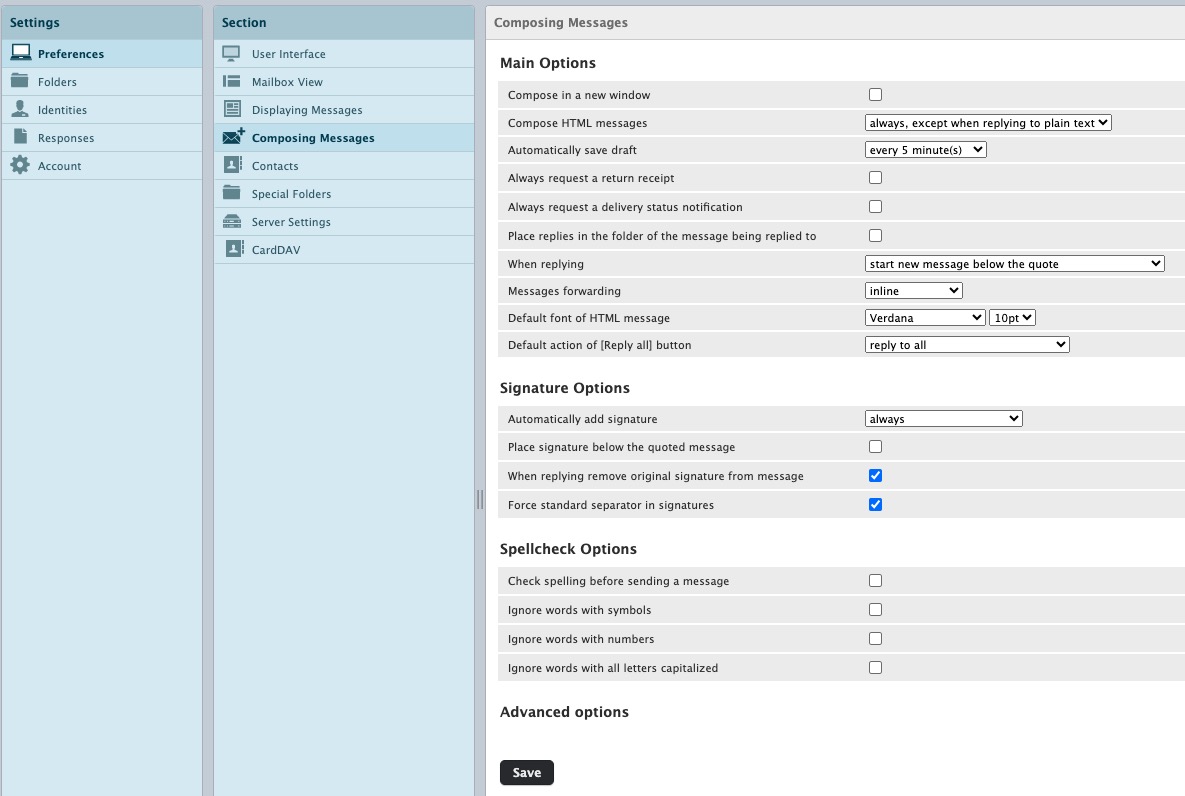
2. On the left select Preferences --> Composing Messages.
On the Composing Messages tab, update the "Compose HTML Messages" field from "never" to "always, except when replying to plain text".
Note:
- The option, "always, except when replying to plain text" will not enable you to send a styled (HTML) message sent back to someone who sent you plain text message. The idea is that they compose plain text because their email client is very limited. By forcing yourself to respond in plain text, it guarantees that they can read your reply. However, if you always want to reply with HTML messages, then choose "always" instead.
3. Click the Save button.
previous page
|