Task:
Create a backup of Outlook Mail account and save as a PST.
Steps:
1. Open Outlook.
2. Navigate to Export pop-up dialog:
File (top menu) --> Open & Export (left menu) --> Import & Export (button/icon right side)
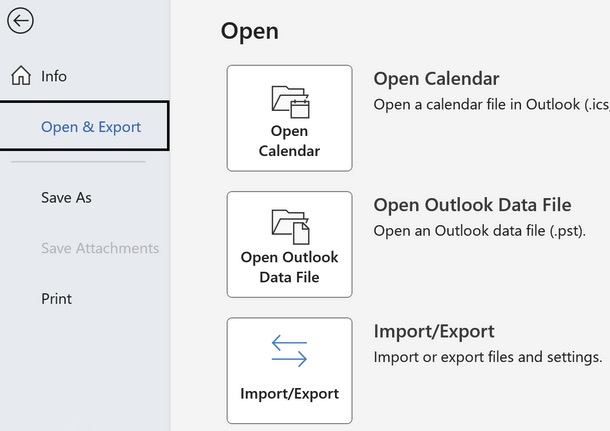
3. In the Import and Export pop-up/dialog, choose to export to a PST file:
a. Choose the option: Export to a file --> click Next (button)
4. In the Export to a File pop-up, replacing the above one:
a. Choose the option: Outlook Data File (.pst) --> click Next (button)
5. In the Export Outlook Data File pop-up, replacing the above one:
a. In the tree of folders, select the top account folder, and keep checked the Include subfolders option --> click Next (button)
b. Under Save exported file as: (field/heading)
- Click Browse (button)
- In the local workstation browse window:
- - Select the desired drive and folder
- - Name the file appropriately: <filename.pst>
(e.g. tripp-mindwatering-net-20250109-backup)
- - Click Open / OK (button to return)
c. Under Options, select:
- Allow duplicate items to be created: <radio-selected>
d. Click Finish (button)
previous page
|