Task:
Create a new local workstation (On My Computer) replica of a Notes app, and set-up the replication schedule with the Lotus (HCL) Domino server.
Prerequisite - Create a local replica
1. Open the application on the Notes/Domino server.
2. With the application open, go to the top menu: File --> Replication --> New Replica
3. In the New Replica dialog, complete the fields:
Important:
If you already have a replica locally, the Notes client will tell you: "Replica on Local will be overwritten".
If you see this message, you do not need to create another replica. Click Cancel and proceed to Part One below.
- Server: Local
Note:
Local means this Notes client, and not the Domino server.
- File Path: <keep the defaulted name and file-path, or choose a folder desired>
Under Replica Settings:
- <check> Encrypt the replica using: Medium Encryption
Notes:
If you are on a portable laptop, you should encrypt the local replica.
The higher the encryption the better, but it does slow the client down very slightly.
- <check> Create full text index for searching
Notes: If space concerns are an issue, you may want to unselect the searching option. Otherwise, leave it checked, and click More Settings. Then change the attachments for Using Conversion Filters ... so the attachments are also indexed well.
- <check> Create immediately
- Click OK.
Part One - Check the database's Replications Settings.
Step by step to automate replication (so that it checks every so many minutes and updates).
1. Verify Replication is enabled:
In the Notes client, click the Replicator icon on the left side toolbar.
2. On the Replicator page, the list of local replicas are displayed. The databases on the client that are set to replicate with a server are listed on this screen.
Open the example below for more information. Replicator Tab Example: Replicator Tab Example:
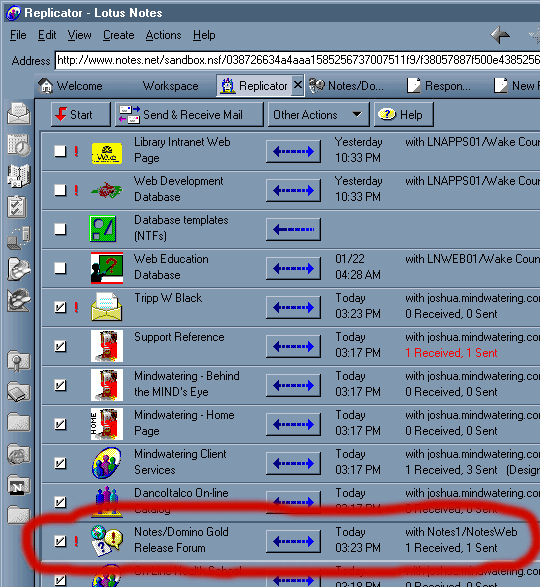
In this example above:
- The left checkbox allows replicas to be unchecked or checked, to be included, in the current replication settings.
- The arrow or the Start button can be used to kick-off a manual/unscheduled replication.
- When replication occurs, the Replicator tab will show the number of notes (documents, design elements, access control, etc) received and sent.
- The box at the left that is checked means it is included in the automatic replication set up for my Notes Client. (That schedule is set up in the location document.) I have multiple ID's that I use (depending which company I am working for at the moment. So my replication depends on which location/ID I am at a given time.)
3. Change an Application/Database priority:
Priority:
I can adjust my replication priority settings - low, medium, high. In my Location settings, I can choose some apps to sync often, and other apps to sync far less often.
We can see high-priority replications with the red ! (exclamation point).
Change the priority by:
- right-clicking the application entry (row) --> choose Replication Settings
- In the Replication Settings for ... dialog, click the Other button --> choose the priority radio button desired. Open the example below.
We can also temporarily disable replication of this app/database.
Part Two - Change the Current Location for Auto/Enabled Replication (Turn on Scheduling).
1. Edit the current Location settings:
- On the bottom lower right part of the client. Click on the Location section, that probably says "Office". It's just to the left of the mail tray icon.
- In the pop-up from the Location, click Edit Current. See example below.
Notes:
The Location documents are actually stored in the Advanced (views) section of the local Notes client Address book (Contacts app in later releases).
In newer Notes client, the Office Location is called Online instead. But if you've upgraded your Notes client in-place, it will still be Office.
In Notes 6.x, the replication settings can be directly edited from the replication tab.
In later versions of Notes, right click the Location instead and choose Edit locations, to bring up the Locations tab within the Notes client Preferences window, then select the Location again, and click Edit.
2. In the Location document, edit the Replication settings:
- click Replication (tab)
- Under the Replication heading, there are two sections for normal and high priority replication below the normal section.
- - Schedule: Enabled
- - High priority replication: Enabled
- - Update the times of days as desired, along with the days of week desired for both section.
- Click Save and Close when done.
Notes:
If replication has never been turned on, both sections will say "disabled". Change both to "enable" like in the example below.
previous page
|