Installation of Pro Control:
The Pro Tools | Control app is EUCON-based, meaning it will work with the DAWs that use EUCON.
(Pro Tools, Logic, Nuendo, etc.) Note that it does require registration, because the EUCON software is added to your Avid account downloads area.)
Since we use Mac products, these instructions will be for the Mac.
1. Visit the App Store and search for:
Pro Tools Control
The app is free, click Get.
2. Once the app is downloaded it will prompt you to register.
Enter your Avid account ID and password.
Once you wait 10 to 30 seconds, you'll get a confirmation page, letting you know that you need to download and install the EUCON software if not already using it.
3. Installation of EUCON software:
Go to https://account.avid.com
Login with the same Avid account ID and password.
Click the link My Products and Suscriptions.
Look for the header/section called Pro Tools | Control and EuControl.
Click the EuControl 3.4 Mac (101.9M option (or the latest version listed) to start the download.
Wait for the download.
Once it downloads, run the EuControl_3_4_Mac_91050.dmg (or latest file) to open the install package. Then double-click the package icon Install_EuControl.pkg.
Run through the standard prompts of the license agreement, and drive to install to. This will install a new icon on the doc for EuControl on the dock.
4. Start Pro Tools and open a session desired.
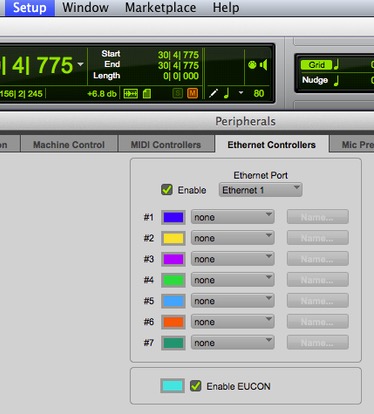
5. On the menu, choose Setup --> Peripherals.
On the Peripherals window, choose Ethernet Controllers.
Click the checkbox to Enable EUCON.
6. Start the Pro Tools | Control app on the iPad.
Make sure the wireless access point the iPad is running, is the same network at the Pro Tools workstation. (This probably won't work through a NAT -- but I haven't tried it.)
After a few seconds, it connected.
Near the top left, you will confirm the workstation you connected. I our case it's Pro Tools 12Mac. The Main Counter, in the far left corner, can be togged between frames and time:
e.g. 30| 4| 775 vs 1:35.518
The Transport play/stop/record buttons controls are across the bottom. Clicking Soft Keys, in the bottom corner, lets you switch to view our favorite, the memory locations where we can quickly move around to new locations to add tracks or review previous mixes. Click Soft Keys again, to return to the Transport buttons.
The Mixer is the default tab selected when the app is loaded.
The tracks are across the top, they are color coded the same as the tracks w/in Pro Tools. Simply slide or click to choose a bank of channels to view/manipulate.
The Tracks tab also displays a larger bank of tracks. It displays the track numbers, the Automation Mode (e.g. Read), and displays if the track is muted, armed for record, etc.
previous page
|