Task:
Need to add additional storage to a PHD Virtual Backup Appliance (now Unitrends Virtual Backup).
You add storage by adding new disks (each up to 2TB, up to 16TB, as of 2014).
Steps:
1. Verify that you have the space to add a new drive to the backup datastore. If the datastore doesn't have enough space, add it from the storage interface.
Warning: Make sure that your storage isn't "thin", too, and over-committed.
2. Once you have your storage extended as needed, select the PHD Virtual Backup appliance to be extended (increased). Choose Edit Settings.
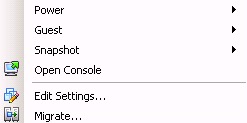
3. Add the new disk.
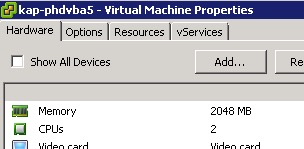
a. Under the Hardware tab, click the Add button.
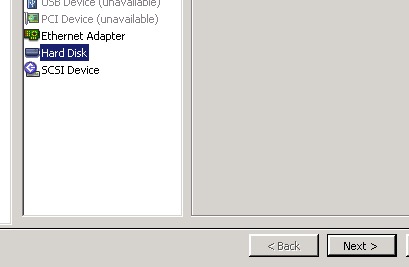
b. Select Hard Disk, and click Next.
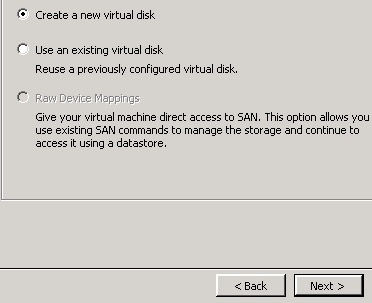
c. Choose Create a new virtual disk, and click Next.
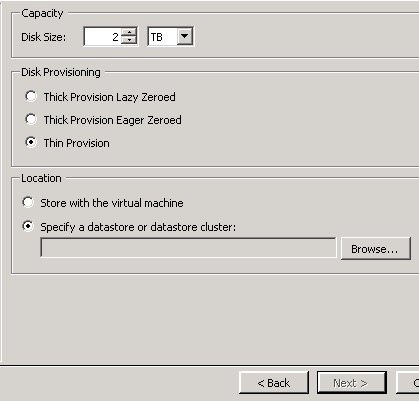
d. Under Capacity, set the Disk Size to 2 TB (assuming you want the max size),
under Disk Provisioning, select Thick Provisioning or Thin Provisioning if desired,
under Location, make sure you Browse, and select the correct datastore.
Note: Typically, the storage datastore is in a separate backups datastore from the running production VM's datastore, and click Next.
e. On the Advanced Options tab, typically just click Next.
f. On the Ready to Complete tab, review your selections, and click Finish.
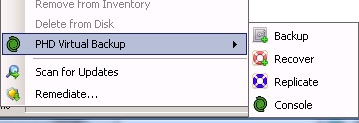
3. Right click any VM, and select PHD Virtual Backup, and Console.
4. Select Configuration on the left. Beside Select the appliance to configure, select the same appliance we just updated.
(The appliance to configure is the same one to which we just added another disk.)
5. Under the Backup Storage tab, click the Configure button. Click the Add button in the middle of the next pop-up, and then click OK.
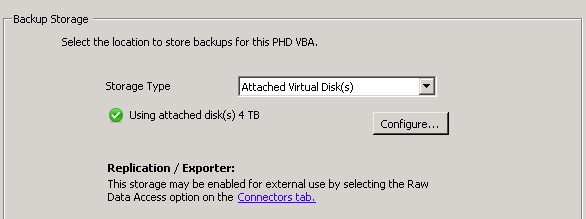
6. The backup appliance will then let you know it needs to reboot, click OK, and wait.
Note:
This will take about 5 to 15 minutes depending on the size of disk you added. The appliance is adding the disk to its storage volume and expanding the volume across the new disk.
You can open the appliance console, to watch the progress if you like.
previous page
|