Steps for Upgrade of vCenter 5.5 appliance to the vCenter 6.0 Ux VCSA appliance.
1. Download the iso to the workstation. Mount to the CDROM.
Note:
If the workstation is a VM (e.g. w/in Fusion) download it to the host first so you don't have to burn the ISO.
2. Mount the iso to the CDROM.
VMware-VCSA-all-6.0.0-3634788.iso
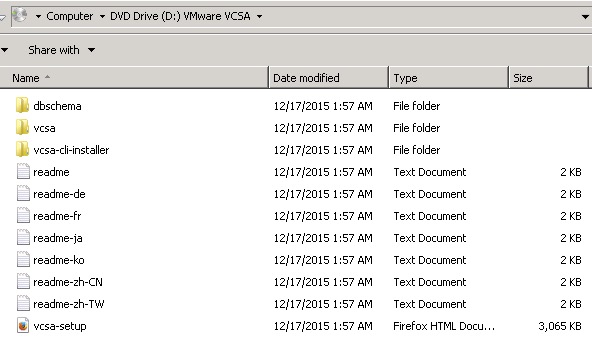
3. Double click vcsa-setup.
The web page will try to detect the an installation client.

If it is not installed, install the client. Then close the browser and run the vca-setup file again.
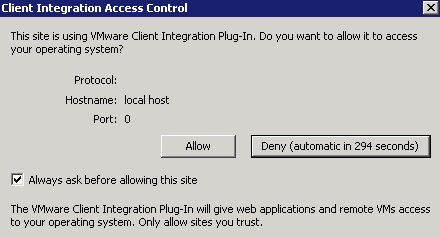
If it is installed, you will be prompted to allow the execution of the program. Click Allow.
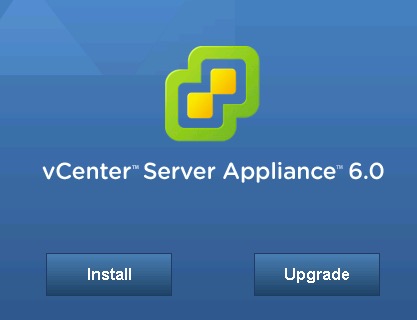
4. Click the Upgrade button.
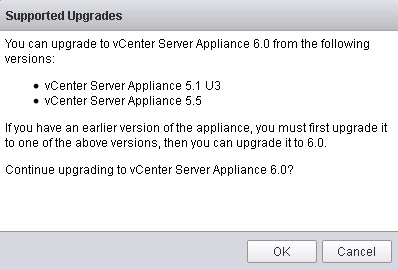
5. Click OK (assuming you running 5.1 U3 or 5.5 or higher.
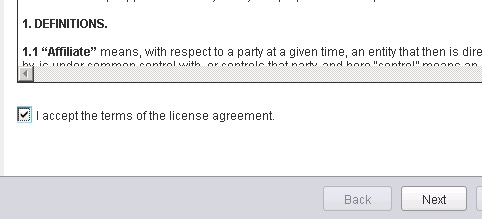
6. If you agree, click the checkbox to accept the terms and click OK.
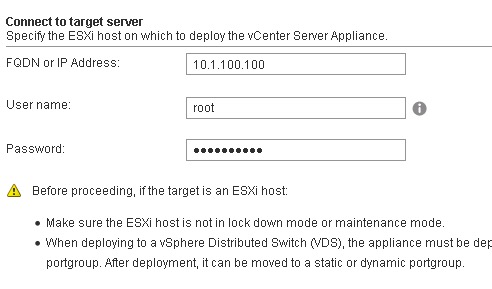
7. Enter the new HOST IP/FQDN and login information.
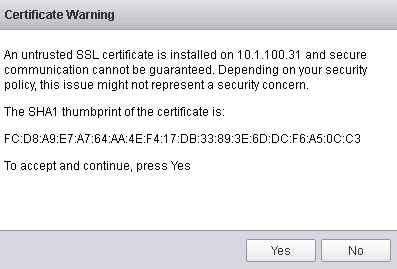
8. Accept the certificate at the Certificate Warning dialog, with Yes.
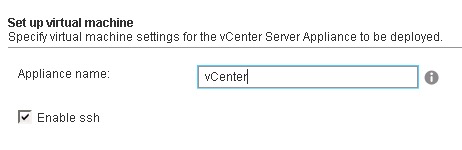
9. Enter the machine name of the new Appliance.
10. Enter the IP and authentication information for vCenter and the current host of the vCenter appliance, click Next when done.
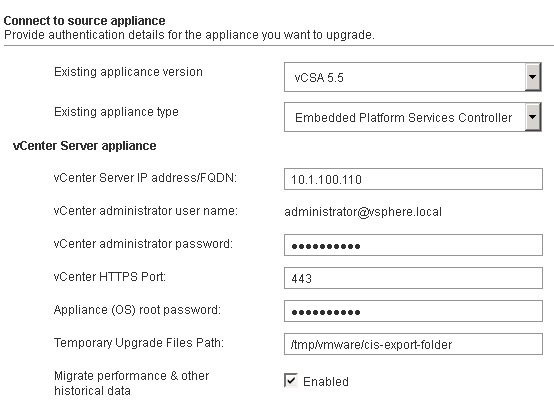
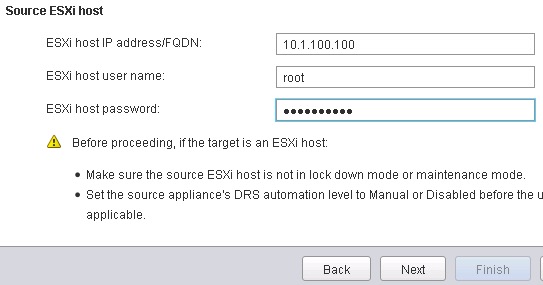
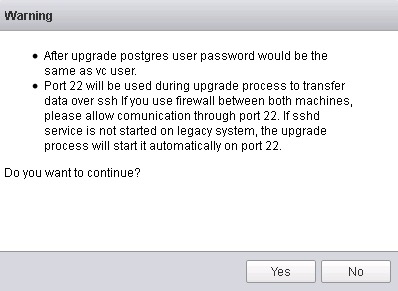
11. After reviewing the Warning info, click Yes.
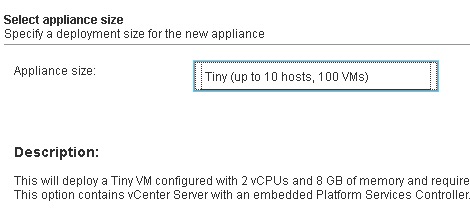
12. Select the new vCenter appliance size, click Next.
13. Select the datastore, and click Next.
14. Enter the temporary IP information for the new appliance, click Next.
15. Wait.
previous page
|