Issue:
Roundcube does not display the full style bar, with font and text options such as bold, italic, underline, left-, left- center- full-justified, etc. Instead, Roundcube shows only back, forward, attach, insert image, and paragraph style.
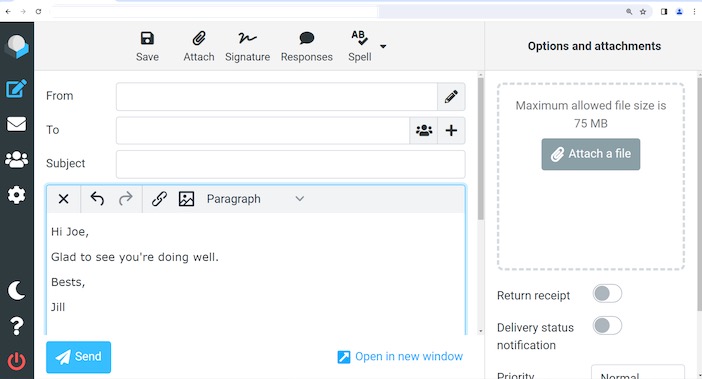
This issue is repeatable in Chrome/Chromium, Firefox, and Edge.
It occurs only on smaller/lower resolution monitors.
Most Likely Solution:
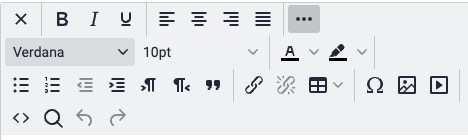
If the screen size is small, Roundcube does display a subset of the styling options, but typically it has ability to use up more space and show more.
1. If the horizontal 3 dots are displayed, click on them.

2. After the additional sections of styling options are displayed, click the one desired. To free up space again, click the 3 dots to hide the less used options again.
Workaround / Solution:
If the browser has a custom zoom (not 100%), this can cause display issues with the automatic sizing of the composing (HTML) styling options.
1. Return to Inbox if not already there.
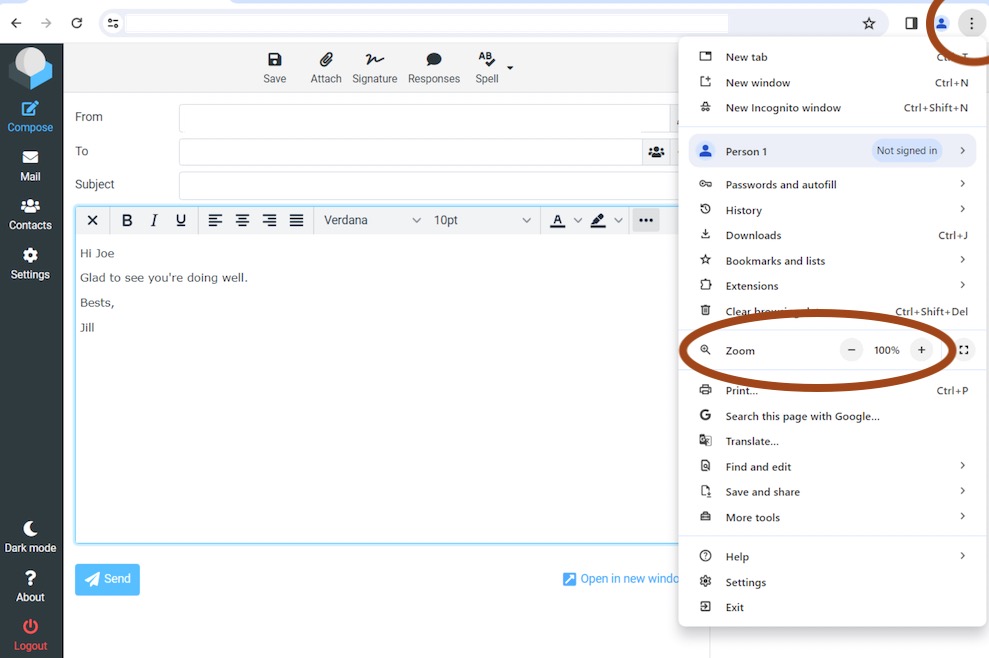
2. In upper right corner in Chrome, Edge, or Firefox, etc., click on the three dots in a column.
Go down to Zoom and decrease the percentage to 100%.
3. Compose a new email. The style bar should now display as normal.
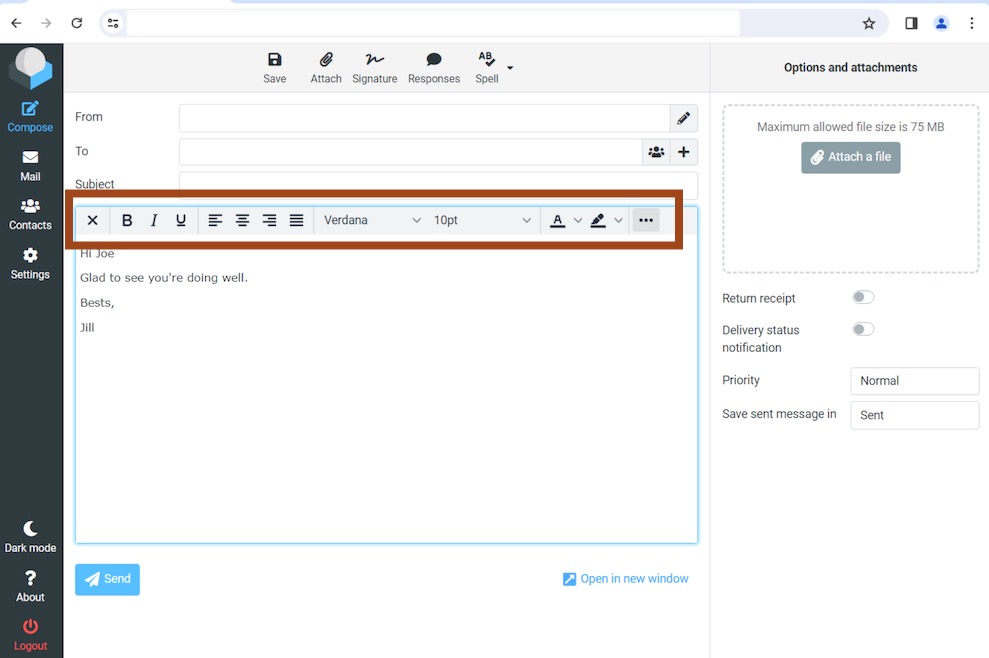
4. If the style bar is still not displaying all the options, either:
a. Increase the browser window size or decrease it until the ultra-small mobile version/styling engages.
b. Exit the draft email and decrease the zoom again. Repeat until the style bar shows the full list of options.
Note:
If the style bar is not showing anything but a picture icon, you are in Plain Text mode with no styling. Click the picture icon.

previous page
|