How to Extend a VMware-based Linux OS with Command Line and GParted Utility:
These steps are assuming vSphere 7.0 and Ubuntu 18 or 20, with the Gnome desktop, and GParted utility installed.
(This can easily be done via command line and a utility Parted utlity iso, if a reboot is not minded.)
1. Expand the disk in vSphere:
a. Open the vSphere Client
b. Right click the VM, select Edit Settings
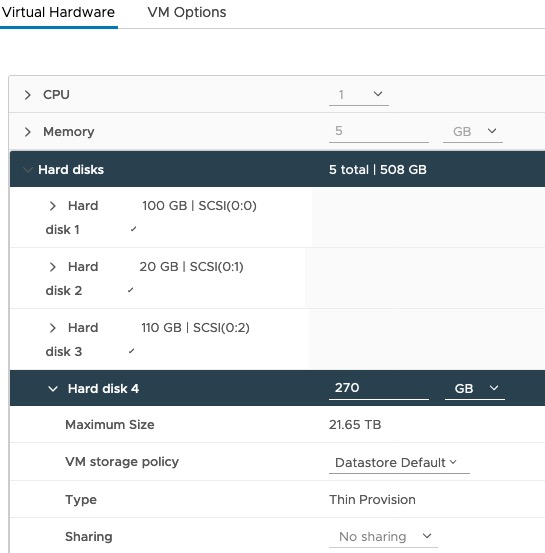
c. Open the Hard disks twistie, and the twistie for the desired Hard disk number (e.g. Hard disk 4).
Change the size to a larger number.
d. Click OK.
2. Tell the Linux OS to rescan.
a. Start a Terminal. Click the menu Show Applications dots.
b. In the terminal window, switch to a user with sudo access, if needed.
c. Using the command below, tell the kernel to rescan for the disk. (In this example case, the disk to expand is disk 4, the sdd disk.)
$ sudo echo "1" > /sys/class/block/sdd/device/rescan
$ exit
3. Expand the partition via the GParted utility
a. Click the menu Show Applications dots
b. In the "Type to search..." search bar, start typing GParted, click application icon, when displayed below the search bar.
c. After GParted loads, change the disk from the first disk to the desired disk, as applicable. In our case, we change it to disk 4 /dev/sdd).
d. Click the Expand icon (orange arrow pointing right).
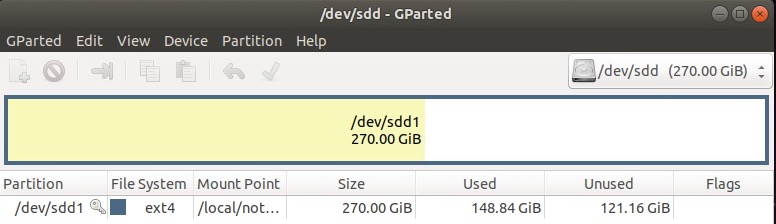
e. In the Resize /dev/sdd1 dialog, drag the handle all the way to the right to use all the new space. Click the Resize button.
f. Watch the progress until it reports a successful message.
g. Quit the application.
Alternate way via terminal:
$ sudo growpart --dry-run /dev/sdd 1
$ sudo growpart /dev/sdd 1
$ sudo lsblk
$ sudo resize2fs /dev/sdd1
_________________________________
Semi-obsolete way:
Actually Extend the Existing Drive:
1. Backup existing vm (drives).
2. Run vmware-vdiskmanager in the folder containing the vmdk:
e.g. c:\Program Files\VM Ware\Folder\vmware-vdiskmanager -x 30GB diskname.vmdk
3. Run the volume utility (if using Linux) to extend the volume to the new size. If using windows, use Partition Magic.
Note: If growing beyond 4GB (which is likely since the OS is getting bigger each release), this could cause the, "It won't boot!" issue.
Unless you are very good at figuring out partition LBA conversion sizes, don't do this, do the Partition Magic method instead.
Create new Disk and Copy Files to New Disk w/ Partition Magic Instead
If the above fails your have have lots of partitions to gather to a new big one. (e.g. from a p2v)
It might be easier to migrate the existing partitions to a new one using Partition Magic or even a copy (if not a system drive).
That way you would end up with just the original c: system drive and one new "data" drive.
previous page
|