Overview:
First Part
The requesting user seeking access to a foreign server must request the cross certificate - it is mailed to the administrator of the foreign server.
Second Part
The administrator who receives the certificate grants the cross certificate.
Note
The person seeking access is sometimes likely to need to do a connection document so that Notes knows how to contact the foreign server.
First Part -- Step-by-Step
- The requesting user chooses "File" and then chooses "Tools" and then chooses "User ID..."
(see Image One below within this section)
 Image One - Menubar Selections Image One - Menubar Selections
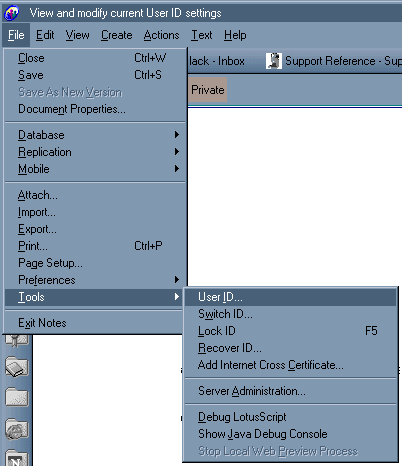
- The requesting user enters their Notes password to re-authenticate.
- Within the User ID Dialog box, select the "Certificates" button tab.
(see Image Two below within this section)
- Press the "Request Cross Certificate..." button.
(see Image Two below within this section)
- In the file browsing dialog box, locate and select the ID to be cross certified and press the "Open" button.
(Ideally, you should use a "safe copy" which is also created within the User ID dialog box in another section.)
Image Two - Certification ID Selection
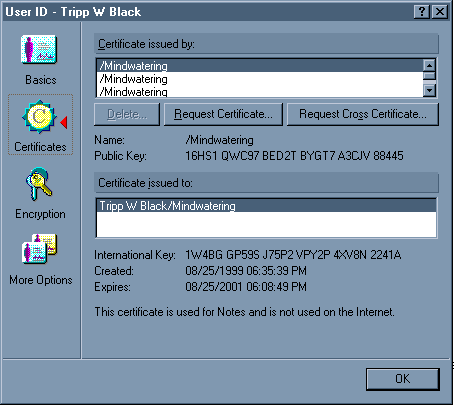
The User ID Dialog Box with Certificates Selected
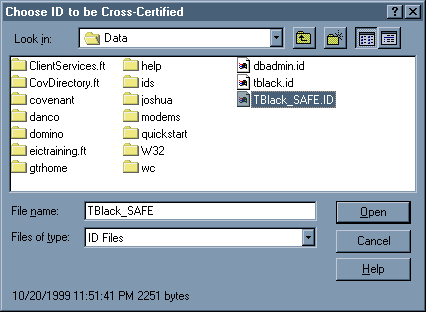
Chosing of the ID to be Cross-Certified
dd
- In the "Mail Cross Certificate Request" dialog box, enter in the remote foreign administrator's email and press the "Send" button.
(see Image Three below within this section)
Image Three - Certification Request/Mailing
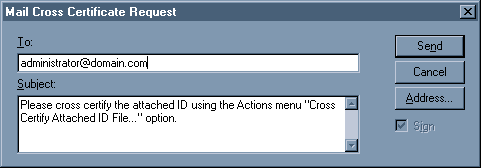
- The ID is now emailed to the administrator who will complete the second part. When the administrator is done, the user can access the foreign server.
Second Part -- Step-by-Step
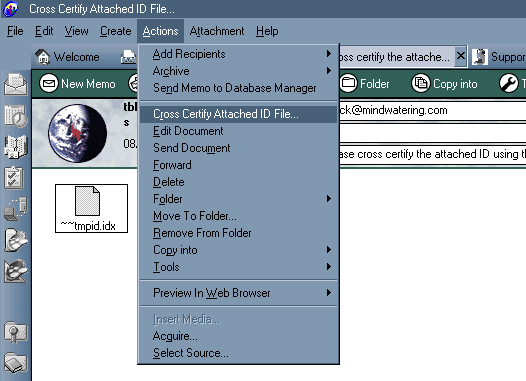
- The administrator receives the email and opens it.
- Within the email is an attachment with a file ending in "idx".
(see Image One below within this section)
- The administrator chooses "Actions" on the Notes menubar and then chooses "Cross Certify Attached ID File..."
(see Image One below within this section)
Image One - Email with Attachment
- In the file browsing dialog box, locate and select the certifier ID. Press the "Open" button.
(see Image Two below within this section)
- In the cross certify screen, verify you are using the correct certifier ID, the server, and that you have the requesting user's name.
(see Image Two below within this section)
- Press the "Cross Certify" button.
(see Image Two below within this section)
 Image Two - Cert ID Screens Image Two - Cert ID Screens
You will see in the status bar, in the bottom middle of your lower Notes bar, message saying that it is adding the certificate and the user's keep to the address book. Once this is completed, cross certification is complete.
previous page
|